Email Logs
The Email Logs product provides a centralized view of recent email activity for your account. It allows you to search, filter, and inspect individual messages to understand their delivery path and troubleshoot issues. Email Logs retains data for up to 30 days, giving you extended visibility into message-level events and outcomes.
To find messages and narrow the results:
- Enter a recipient email address in the Search box.
- Under Filters, click a filter.
- Enter or choose a value.
- Click Apply.
To remove every filter, click Clear all.
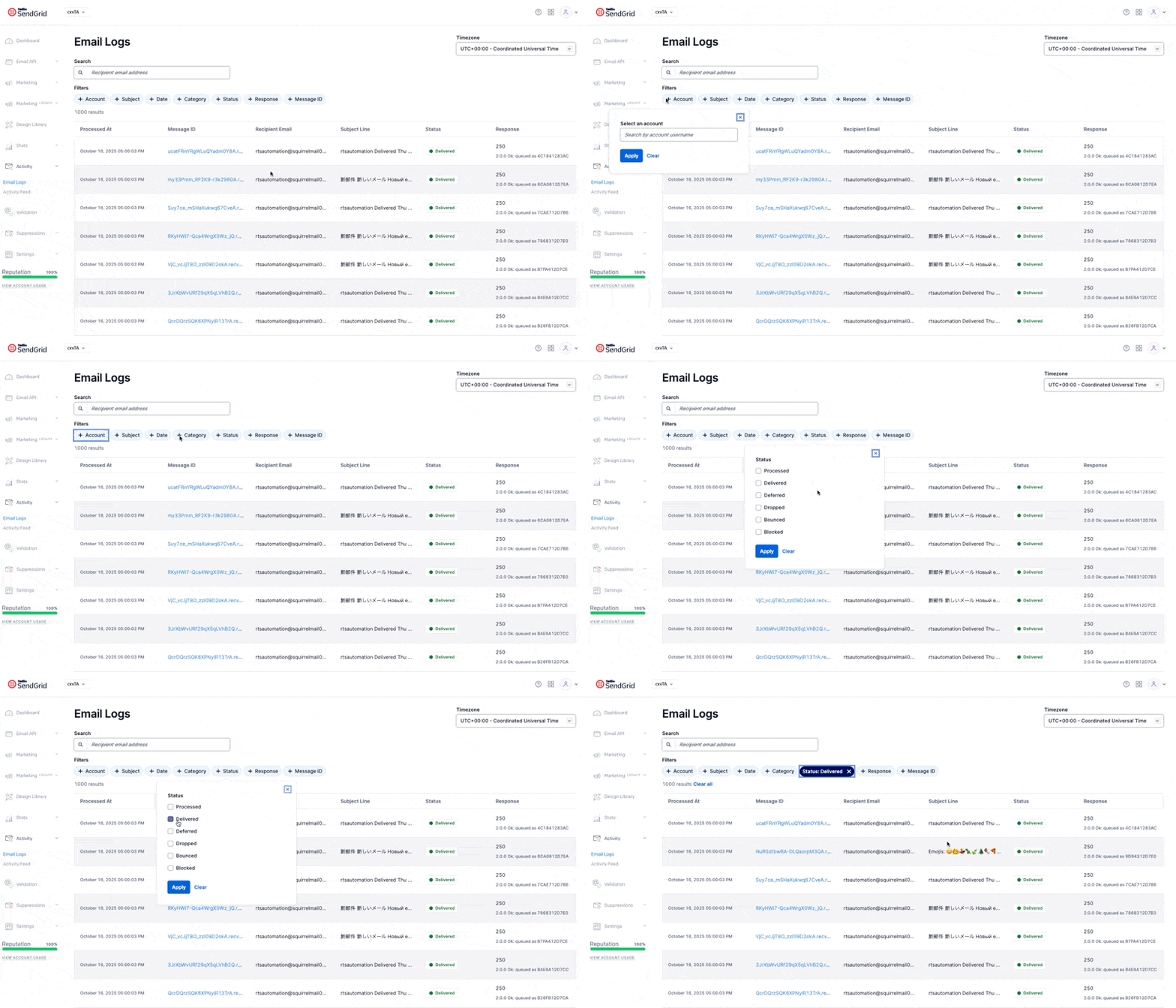
| Filter | Match method | How it matches | Example |
|---|---|---|---|
| Recipient email address | Starts with | Matches a complete email address or the start of an email address that received the email message. | jane@ |
| Date | Chosen range option | Matches emails sent within the Last 3 days, Last 7 days, or in Custom range up to the last 30 days. | |
| Account | Username | Matches your account or a subuser username. | |
| Subject | Starts with or Contains | Matches text of the subject using text search operators. | |
| Status | Selected status | Matches one or more of Processed, Deferred, Delivered, Dropped, Bounced and Blocked. To learn more, see delivery events. | |
| Response | Starts with or Contains | Matches the text of the receiving server's response using text search operators. | |
| From email | Starts with | Matches a complete email address or the start of an email address. | pat@ |
| Message ID | Exact match | Matches on the sg_message_id. Also known as message ID or msg_id. | |
| Outbound IP | Starts with | Matches the Twilio SendGrid IP address that sent the message. To match a range, enter the start of an IP address. | 192.0.2. |
| Category | Selected category names | Matches one or more of the category names you created. | |
| Events | Selected event type | Matches one or more of Processed, Deferred, Delivered, Bounce, Dropped, Open, Click, Spam Report, Unsubscribe, Group Unsubscribe and Group Resubscribe. Returns messages that recorded any of the selected events. | |
| API Key ID | Exact match | Matches on the API key ID that sent the message. This uses the API key's ID, not the secret key. |
Filters combine with AND, so each one you add narrows the results.
Subject and Response let you choose how to match the text you enter.
-
Starts with (default) matches the beginning of the field and is case sensitive.
Your ordermatchesYour order has shippedbut neitheryour order has shippednorUpdate on your order. -
Contains finds messages that include every word you enter in any position and any order. It isn't case sensitive.
order shippedmatchesYour order has shippedandShipped: order #1234.Contains matches whole words, not parts of words.
shipdoesn't matchshipped.In Response, spaces and most punctuation separate words, but periods and underscores don't.
An IP address or domain like192.0.2.10orexample.comstays one word. Search for the full value.
Selecting a message from the results list opens the Email Details page, which provides a complete view of that message's lifecycle and delivery timeline.
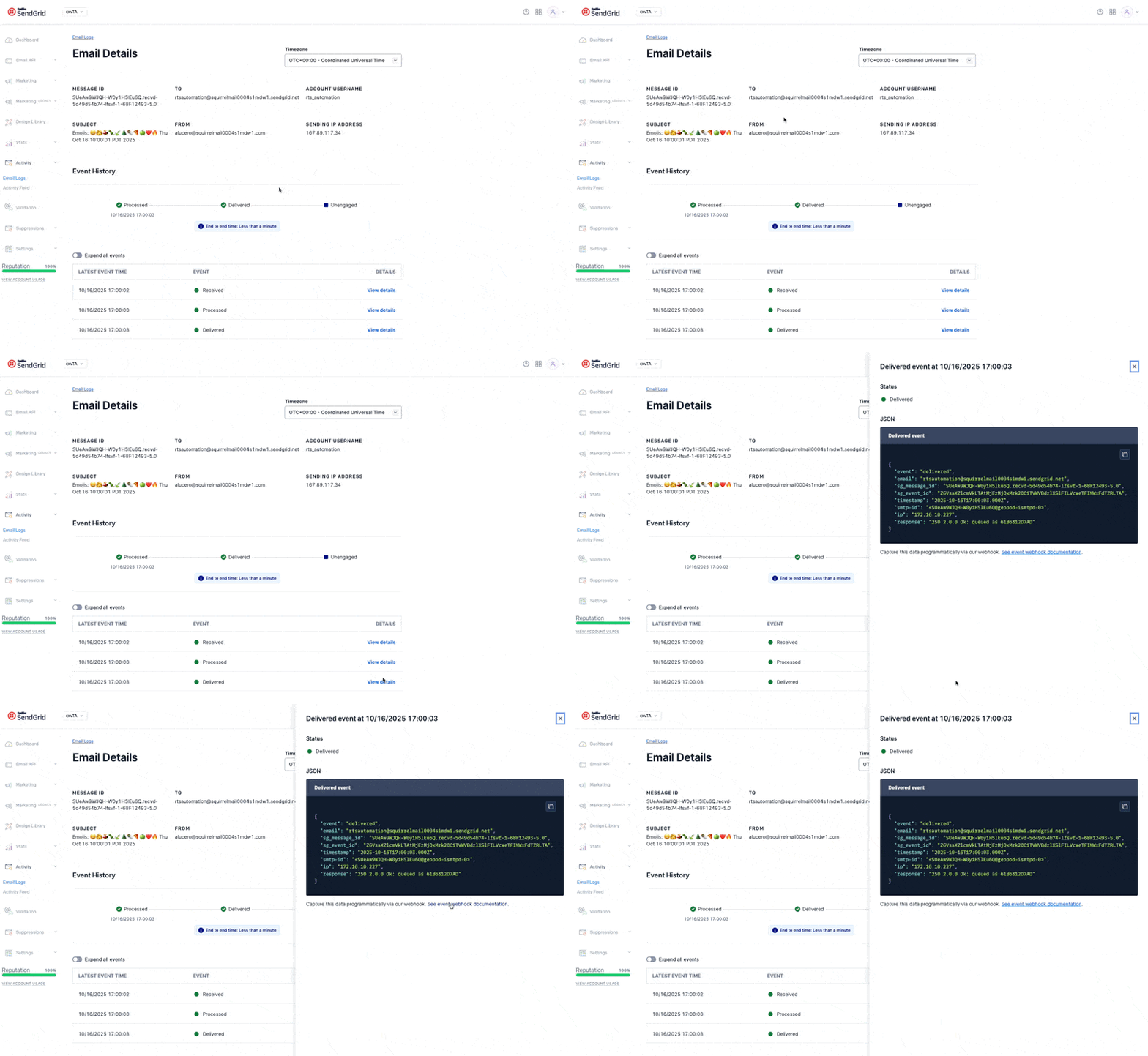
The page is divided into several sections:
At the top of the page, you'll see high-level message attributes, including:
- Message ID: The unique sg_message_id for the selected message.
- To/From: The recipient and sender email addresses
- Subject: The subject line of the email.
- Account Username: The username that sent the message.
- Sending IP Address: The IP address from which the message originated.
A visual timeline displays each stage in the message's lifecycle. This describes how Twilio SendGrid processed the email, whether it was delivered to the recipient domain, and what engagement occurred on the email. A summary banner below the timeline shows the end-to-end time, which represents how long it took the email to move from initial processing to final delivery.
Beneath the timeline, the Event History table lists each recorded event for that message. The events are ordered chronologically by event type. When multiple occurrences of the same event type exist, use the expand all events toggle to show every event in the timeline.
To open a detailed panel showing an event's full JSON payload, click view details next to the event. The structure and fields of this payload align closely with those delivered through the Event Webhook, though minor differences can exist between the two sources.